Free online screen tester and monitor test tool. Test your screen or monitor online for dead pixels, color accuracy, refresh rate, brightness, contrast, and ghosting directly in your browser.
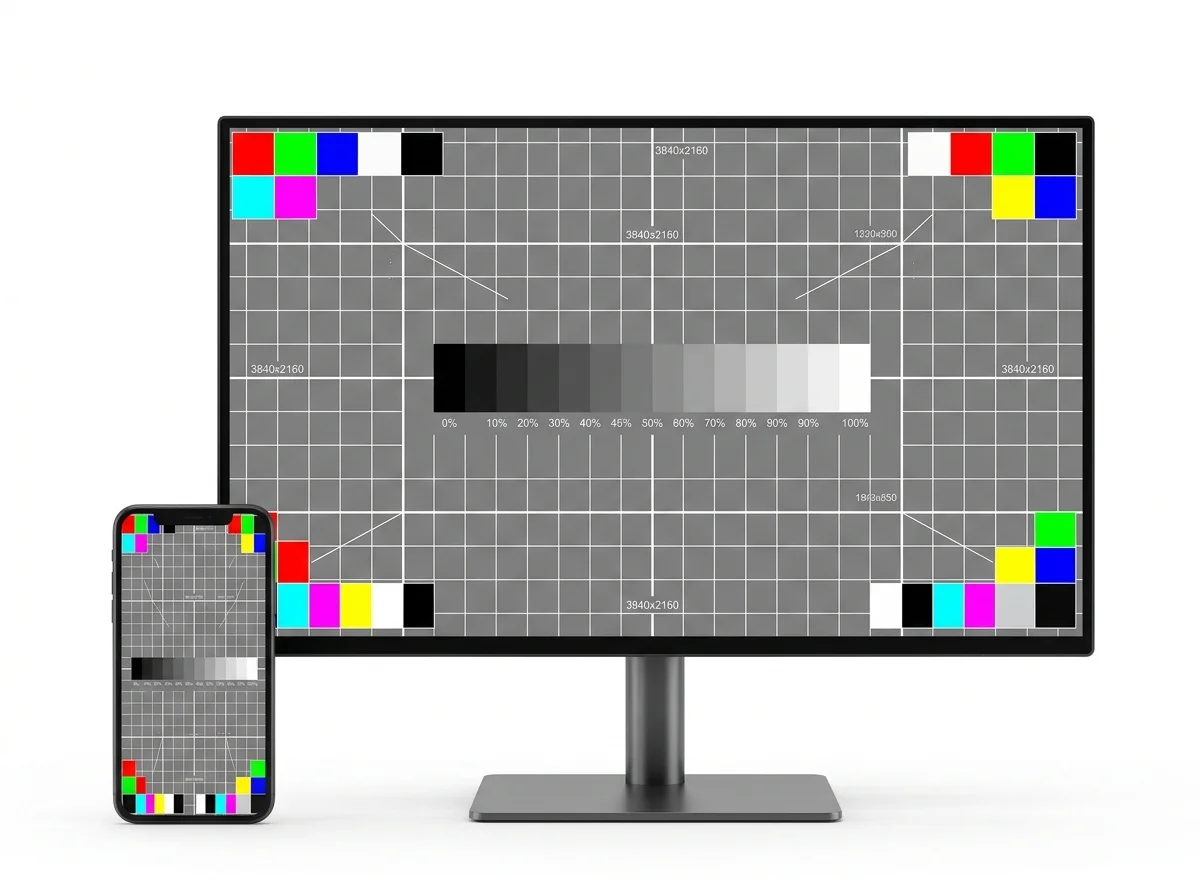
Explore all tests available for checking your display.
Fill the screen with solid colors to easily spot stuck or dead pixels on your monitor.
Attempt to revive stuck subpixels by rapidly cycling high-contrast colors in the affected area.
Examine dark screens to locate hot or bright subpixels permanently stuck open.
Inspect OLED and LCD displays for persistent shadow outlines, static HUD retention, and panel burn-in.
Assess color rendering and saturation using primary and secondary color patterns.
Inspect wide color gamut support and verify rich saturation rendering without clipping.
Verify color balance and skin tone rendering against industry standard sRGB and wide gamut reference swatches.
Assess color vibrancy and detect banding in high-saturation gradients.
Evaluate contrast ratio, color separation, and gradient steps across 25 dynamic levels.
Tune your black levels and white point to ensure no detail is lost in the extreme ranges.
Tune your monitor's black levels to ensure dark details aren't crushed.
Tune your monitor's contrast to ensure bright details aren't clipped.
Visually estimate your monitor's gamma tracking (target 2.2 for sRGB).
Check for smooth transitions in gradients to test your panel's true bit-depth capabilities.
Test monitor ability to render neutral grays without color tinting.
Identify Dirty Screen Effect (DSE), vignetting, and uneven backlight distribution.
Detect IPS glow, clouding, and light leakage from the bezel in a dark room environment.
Test mini-LED local dimming zones for haloing and blooming artifacts around high-contrast bright objects.
Fill your screen with pure primary, secondary, black, and white fields to inspect overall panel cleanliness.
Evaluate IPS, VA, OLED, and TN panel color fidelity and contrast stability when viewed from wide angles.
Check pixel response times and overdrive artifacts with high-speed moving elements.
Analyze motion resolution and persistence blur on fast-paced scenes and moving test objects.
Verify that your monitor and browser are actually running at their maximum refresh rate.
Check for horizontal tear lines during motion to verify active V-Sync, G-Sync, FreeSync, or VRR support.
Inspect display backlight for high-speed PWM flickering, strobe effects, and subtle luminance fluctuations.
Check display scaling, subpixel font rendering, and edge sharpness with 1-pixel alternating line patterns.
Verify your browser and OS correctly detect HDR and Wide Color Gamut.
Test touchscreen touch points, responsiveness, dead touch zones, and multi-finger gestures online.
Additional utilities to get more from your display.
Follow three practical preparation steps to ensure reliable visual inspection before evaluating your display.
Clean dust and smudges from the screen surface. Set your operating system to native resolution and 100% display scaling.
Toggle fullscreen mode (press F11) so browser toolbars, tabs, and operating-system taskbars do not obstruct edge pixels.
Dim room lighting when checking backlight bleed and contrast. Inspect the panel from both direct and off-axis angles.
Screen Tester is a free online tool designed for comprehensive display and monitor testing directly in your web browser, with no software or drivers required.
Screen Tester is a free online tool for checking your screen, monitor, or display directly in your web browser. It provides visual tests for common display issues such as dead pixels, colors, brightness, contrast, refresh rate, and screen ghosting.
The tool is useful for checking new or used monitors, laptop displays, gaming screens, and other displays without installing additional software. The tests provide visual inspection patterns and should be treated as a practical reference rather than laboratory-grade hardware measurements.
All tests provide visual diagnostic patterns for human inspection under controlled viewing conditions. Screen Tester does not replace optical hardware sensors (such as spectrophotometers, colorimeters, or photodiode oscilloscopes) and does not modify operating-system color profiles. For optimal results, clean your screen, inspect in fullscreen mode (F11), and verify display scaling is set to 100%.
Test every key on your keyboard online with our free Keyboard Tester.